 GIF
How to Crop an Animated GIF Into a Square
To crop a GIF into a square, open it in GIF Cropper and choose Square (1:1). The editor starts with the largest square that fits in the source and centers it. Adjust Width to change both sides of the square. Use Left and Top to move the crop over the part you want to retain. Every frame uses the same rectangle, so check the full motion before exporting.
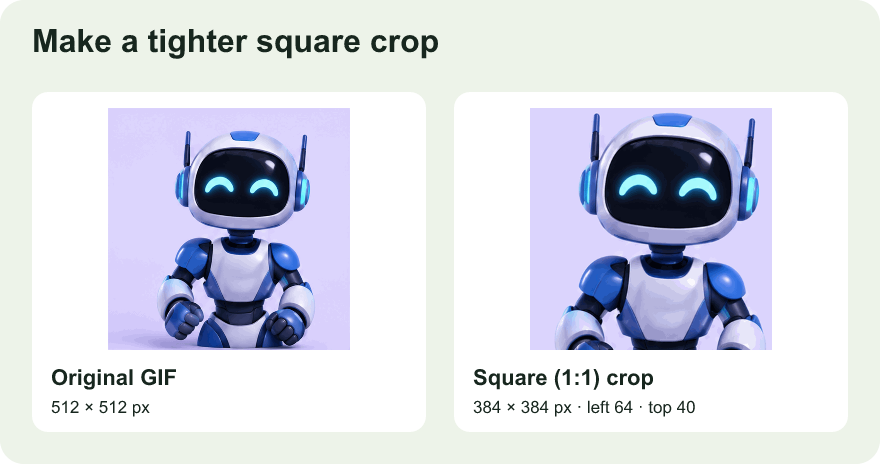
Decide what needs to stay visible
For an avatar or an expression, give the face most of the space and leave enough room for gestures. For a screen recording, keep the controls and text required to understand the action. For a dancing character, look for frames where limbs extend toward the edges. A square can frame these subjects well, but a crop chosen from the first frame alone can cut through the important movement.
Play the whole animation once. Identify the moments where the subject reaches furthest left, right, up, and down. Then step through those frames and check them against the outline. If there is no square that fits all the important positions, try using a shorter passage where the subject is closer to the center. If the entire composition needs to stay visible, keep the rectangular version or use a separate tool that can add padding around it.
Set the square size and position
Start from the centered crop. If the subject sits off center, move the square before shrinking it. Left and Top are pixel offsets from the source's top-left corner. A larger Left moves the crop right; a larger Top moves it down. The editor keeps the crop inside the canvas. If a position cannot fit at the current size, make the square smaller or choose a different position.
For example, a 640 by 360 GIF starts with a 360 by 360 square, 140 pixels from the left and zero from the top. If the subject is on the right, the square can move right while keeping its full height. To move vertically as well, reduce the width of the square. On a tall GIF, the same idea works in the other direction: a full-width square can move up and down, and a smaller square gives you room to move horizontally.
Use small offset changes near the final composition. Keep enough space around important edges so a moving hand or a subtitle does not feel squeezed. For a reaction, compare a tight crop on the expression with a slightly wider crop that shows the action causing it. Both can be technically valid, but one may be easier to recognize out of context.
Export the crop and check the downloaded animation
Choose Crop GIF and download the result. Check that the width and height match and that the movement stays inside the new frame. Open the saved file at the size you expect people to see. The crop should improve the composition throughout the animation, including the moment when the last frame returns to the first. If a head seems to jump in and out of the frame, expand or move the square and try the export again.
The crop retains the original frame delays. It re-encodes the output as GIF, so colors and file size can change. Compare the result over the background where it will appear. If the source includes transparency, check thin edges and shadows on both light and dark surfaces. Keep the source intact in case a second destination calls for a different composition.
Resize after cropping when the output has a pixel requirement
A crop controls what part of the picture is visible. If you need a square of a specific size, open the cropped download in GIF Resizer and enter the target dimensions with the aspect ratio locked. For instance, you might crop a 512 by 512 section and then scale it down to 128 by 128. That preserves the square composition while changing how many pixels the output uses.
If you also need a smaller file, test the scaled version in GIF Compressor. Compare scale and palette changes using the actual output size. Tiny square files can still be large when the animation contains many frames, so remove unused time with GIF Trimmer if the action reads well in a shorter range. For a Discord custom emoji, follow the 256 KB workflow and check the exported size before upload.
Use the preview to decide whether to keep the square
A square is helpful when it gives the subject a clear place in the frame. For a wide gesture, a horizontal chart, or a long line of text, the rectangular crop may communicate the action better. Switch Crop shape to Custom rectangle to set width and height independently. Compare the two versions where you plan to use them. If a platform adds its own crop, inspect its preview too. The best dimensions are the ones that keep the whole action understandable at the destination.