 GIF
Why Use Image Sequences for Animation Review?
An animation gives reviewers a sense of rhythm. Numbered images give them a shared reference for a specific pose, a glitch, or the moment a label becomes readable. Use a sequence when someone needs to compare changes across several moments, and send the original animation alongside it whenever playback matters.
In this example, the robot's wave works as a loop, but a reviewer might want to flag exactly where the hand comes too close to the edge. A frame number makes that note reproducible. Use the GIF Frame Extractor when you need the numbered pictures and timing. For a single still, convert a GIF to PNG and name the file after the moment it shows.
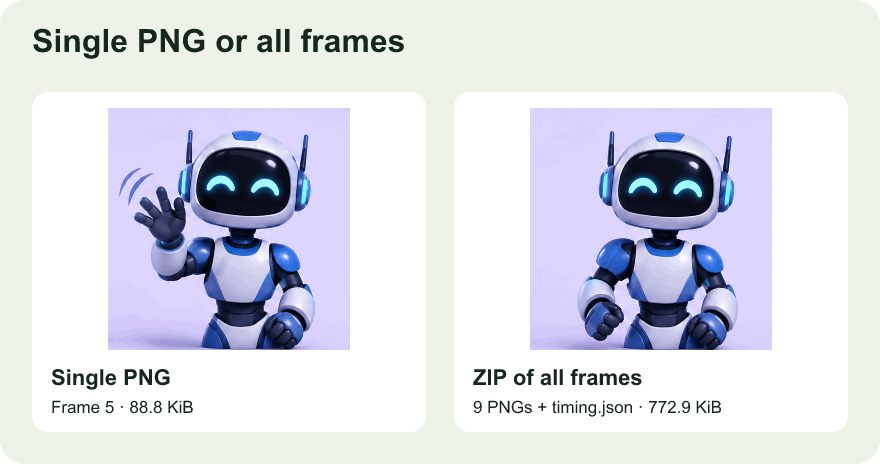
Make feedback precise enough to act on
Start with one question for the review, such as whether the character stays inside the crop during a wave. Watch the loop to find the approximate problem, then compare the neighboring stills at the size the audience will see. A note like “the hand crosses the right edge in frames 6 and 7” tells the editor which images to inspect. A note like “the movement looks cramped” still describes the impression, but leaves the editor guessing about where to look.
For interface recordings, ask a reviewer to mark the first frame where a control is visible and the first frame where it is legible. These may be different if the control fades in or if the pointer covers the label. Keep one image before and one after any suspected glitch when you share the evidence. Those neighbors help distinguish a transient animation effect from a rendering defect. If the issue only appears while the loop plays, include the source animation and explain what to watch for.
Give each revision its own reference
When opening a review with two revisions, use labeled folders and note whether the clips begin at the same moment. If one version has been trimmed, frame 5 from the first file may correspond to frame 2 in the second. Align by a visible event, such as the first raised hand, or by elapsed time if both clips share the same start and delays. Write that reference in the review notes so the next person can repeat the comparison. Keep the complete numbered archive when timing is part of the handoff, and send only the relevant stills when the recipient needs to inspect a small visual change.
Read the delays before rebuilding motion
The delay for a frame describes how long it stays on screen. Some GIFs use the same delay for every picture, but others include a hold on a reaction, a title card, or the last pose. Inspect timing.json when you want to preserve those differences. The first delay belongs to the first exported PNG, the second delay to the second PNG, and so on. Adding the delays gives the duration of one pass through the sequence.
If you import the PNGs into an editor using one fixed frame rate, a source with varied delays may play differently. Compare the rebuilt animation with the original and restore longer holds where needed. Keep the original GIF for comparison and note its looping behavior if you need to match it. The PNG sequence gives you image data and the timing file gives you a reference for playback. The final animation settings depend on the editor you use to reassemble it.
Understand why each exported frame is complete
Some animated GIFs save only the rectangle that changes between pictures. A frame that moves a cursor might contain a tiny area rather than a new copy of the entire interface. The extractor reconstructs the visible canvas using the surrounding frame history and disposal rules before saving a PNG. That is why a frame taken from the middle of an optimized GIF can still be used as a full screenshot.
Inspect transparent areas in the downloaded PNG if you plan to use the image on a different background. An image viewer may show transparency as white, gray, or a checkerboard. Put the PNG against the actual background to look for halos or clipped edges. The extracted picture reflects the colors and transparency already present in the GIF. Details lost when the source was encoded cannot be recovered by changing the still's format.
Choose the order of edits that preserves what you need
For an untouched still, extract it directly from the original. For a set of consistently framed stills, you can crop the GIF first and then extract the cropped sequence. That applies the same rectangle everywhere, which helps when comparing the position of a moving subject. Check the crop in the frames where the subject is closest to an edge. If you only need frames from a short interval, trim that interval before creating the ZIP, and keep the original if you later need a frame outside the cut.
When sharing the archive, tell the recipient which frame or range to inspect and whether timing matters for their task. This is especially useful when several frames look nearly identical. The numbered PNGs give both people the same reference, making a precise revision easier than describing a moment by approximate playback time.