Remove Background from GIF: Solid vs. Transparent Backgrounds
A solid GIF background gives the animation its own stage. A transparent background lets a webpage, slide, or chat theme show through around the subject. Both can look clean in the right setting. The choice depends on where people will see the GIF and whether the original backdrop is part of the design.
The robot below illustrates what changes. In the lavender version, the area outside the robot stays lavender wherever the file is displayed. In the transparent version, that same area takes on the color of the surface underneath. The subject can feel like part of a layout instead of a picture placed inside a colored rectangle.
Remove background from a GIF
If you want to remove bg from a GIF with a flat or nearly flat color, open it in the editor below. Click an opaque part of the background to sample its color. Start with From edges and low tolerance, then export a preview. Step through a few frames to check that the subject remains intact before downloading. Your file is processed in your browser.
 GIF Background Remover LOCAL PROCESSING
Choose a GIF to get started.
Drag & drop your GIF here, or paste with Ctrl + V
Make a flat background transparent.
Click near a background edge in the preview to pick its color. Start with From edges to protect matching colors inside the subject.
All frames retained. Re-encoding can change colors and file size.
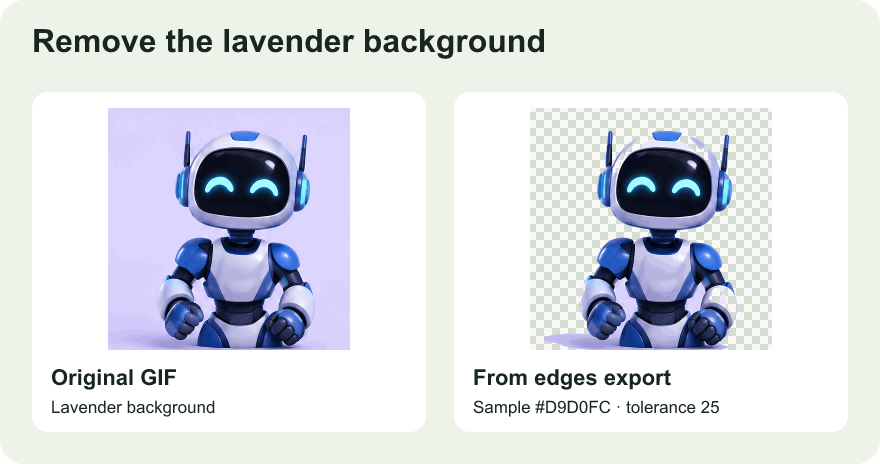
Use a solid background when the backdrop carries the design
Keep a solid background when it supplies the contrast that makes the animation legible. A white diagram with dark labels is easy to read if the diagram arrives with its own white canvas. The same labels may disappear if the canvas becomes transparent and the destination uses a dark theme. A branded color can also be part of the identity of a button animation, a reaction, or a looping badge.
Solid backgrounds work well when the GIF is viewed in several places you cannot control. A tutorial clipped from a screen recording usually makes more sense with its interface intact. A slide sent to a colleague can keep its visual hierarchy even if they change the slide theme. If the rectangle looks awkward, a crop can reduce empty margins while retaining the backdrop that protects the content.
Use transparency when the subject needs to sit inside a layout
A transparent GIF works well for a character beside a headline, an animated badge over a card, or a reaction that appears on multiple chat themes. The same file can sit on a neutral page and a colored panel without carrying a separate box into each layout. This works best when the subject already has a clear outline and enough contrast to stand on its own.
Check the surroundings before choosing this version. A dark outline may merge into a dark card, and light clothing can disappear against a white slide. The colors behind a transparent animation may also change during playback if it sits over a video or a photo carousel. Test the darkest and lightest backgrounds the subject is likely to cross. Use a solid version when a moving backdrop makes an important gesture or label hard to read.
Tell a transparent background from a color that matches the page
A GIF on a white page can look identical whether its corners are white or transparent. To tell them apart, place the same saved file over two contrasting colors. If the corners change with the surface, those areas are transparent. If the rectangle stays white or lavender, it is part of the image. A checkerboard helps when it comes from the viewer. A checkerboard drawn into an image behaves like any other opaque artwork and travels with the file.
Check more than the opening frame. An animation can reveal a different boundary when a hand moves or when an open gap appears between parts of the subject. A preview that looks clean during the first second may still show a flash of the old backdrop later. Use playback to spot the moment, then pause or step through the neighboring frames. If you are sharing the file with someone else, include a screenshot over a contrasting color to show what you observed.
Expect hard edges from GIF transparency
GIF pixels are either visible or transparent. A GIF cannot store a translucent drop shadow or a partly transparent hair edge the way a format with full alpha can. Where the original artist blended the outline into a flat backdrop, some blended pixels may remain visible as a fringe. A lavender rim can be subtle over a light page and obvious over a black one. Look at the result at its actual display size, because a zoomed preview may make small edge defects seem more important than they are.
If you need soft transparency, work from an original that still contains the alpha information and choose a format your destination supports. An APNG converted from a GIF can preserve transparency already present in the GIF, but conversion cannot recover partial alpha that was lost before the GIF was saved. For a GIF-only destination, a well-chosen solid backdrop can be the cleaner version when soft shadows are central to the design.
Choose a version and verify it in the destination
Open the uploaded GIF or the slide where it will appear. Check its corners on the final background, watch a full loop, and confirm that captions and facial features stay readable. If you are supplying an asset for several themes, keep two clearly named copies so the recipient can choose the one that matches their layout. Save the original too, since a new destination may call for a different backdrop later.
If you have decided on a transparent version and the existing backdrop is a flat color, use GIF Background Remover to remove the solid background and preview the export. The tool page explains color sampling, tolerance, and how to protect similar colors inside the subject. Return to this comparison when you need to decide which version to publish.