 GIF
How to Compress a GIF for X on Mobile and Web
X lists a 5 MB limit for animated GIFs posted from mobile and a 15 MB limit on web. Decide where you will upload before you edit. A file that fits on the web may be rejected by the mobile app. If a teammate may post it from a phone, prepare a mobile copy with headroom and keep a larger web copy only when the extra detail is useful. These limits are for GIF attachments in posts. See the X guide to posting GIFs and pictures for the current requirements.
Start by measuring the GIF you already have
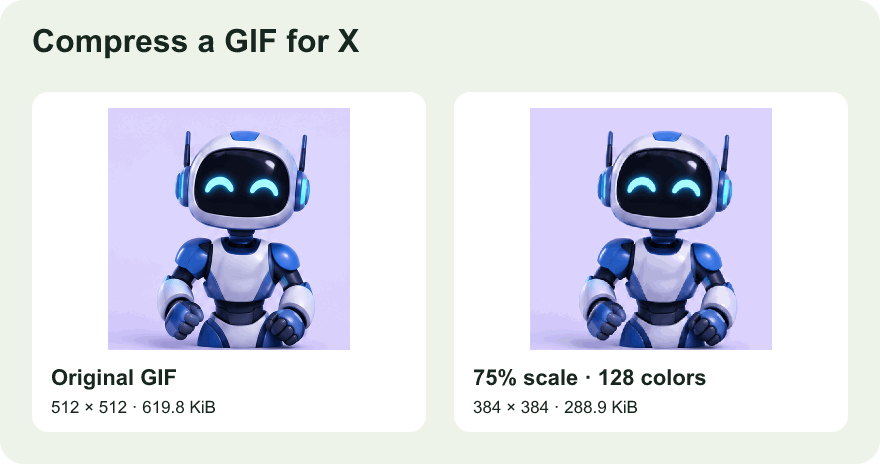
Open your file properties and note its size. Then open the GIF in the browser editor to see dimensions, frame count, and duration. Write down the information you want to retain: an on-screen button, a line of text, an expression, or a full movement from start to finish. This gives you something to protect when testing smaller exports. A GIF with only a few large frames can be harder to fit than a longer, smaller one, and two animations with the same dimensions can have very different sizes.
When the source is close to the mobile limit, a moderate change may be enough. For a file several times over the target, start with the content itself. Look for a long cursor pause, a blank opening, or a wide margin around the important part. Removing unused material often protects the detail that matters better than shrinking the entire canvas immediately.
Trim the unused time and crop the unused space
Open GIF Trimmer and choose the useful passage. For a product demo, start just before the action that explains the feature, and stop once the effect is visible. Give the viewer enough time to read the result. For a reaction, include the setup if it makes the expression understandable. Use frame mode when one cut lands on a nearly blank picture or catches a pointer halfway between targets.
If the important action occupies only a portion of the canvas, open the trim in GIF Cropper. A screenshot recording may include a large empty margin or unrelated panels. Crop to the relevant area, then check several frames to make sure a cursor, hand, or dialog box stays visible throughout. In a screen demo, keep enough surrounding context for someone who has never used the product to tell where the action happens.
Check the size of each intermediate export. A trim can grow if the original used small frame updates and the export represents frames differently. That can happen even when the new animation is visibly shorter. If it does, keep the edit that tells the story well and use the compressor on that result. See why trimmed GIFs can be larger for a way to diagnose this.
Choose a scale and palette for the content
Open the edited file in GIF Compressor. For a colorful reaction or footage with gradients, try reducing scale before reducing the number of colors aggressively. For simple UI graphics, check whether a smaller palette preserves the contrast between labels, buttons, and backgrounds. Export a baseline and change one setting at a time. Compare each download using its measured size and preview it at roughly the size of a post on a phone.
For example, suppose a GIF is 8 MB and you need a mobile version. Test the useful trimmed passage at a moderate scale while keeping a larger palette. If the result is still over 5 MB and the text remains readable, try a slightly smaller scale. If the text is already hard to read, restore the larger scale and reduce the palette or trim another idle interval. There is no universal conversion from scale percent to MB, so check the export after each trial.
If the web version is already under 15 MB and looks right, keep it as a candidate for web posting. For a shared workflow, give both files clear names so the uploader can choose the one made for their device. Aim comfortably under the target rather than relying on a rounded file size near the cutoff.
Verify playback as well as size
Open the final GIF outside the editor and watch the transition from the last frame to the first. The editor can repeat a preview for inspection even if the source plays only once. X says a single-play GIF may display as a still image. Check the loop behavior of the downloaded file and preview the actual post before publishing. If the source loop setting itself is wrong, trimming will preserve it, so use an editor with a loop control to change it first.
Choose the file from the intended device and check that the composer accepts it. Keep the saved GIF extension and file format consistent. Renaming a WebP file to GIF does not convert it. If the upload fails despite being well below the size cap, confirm the file opens correctly, check the destination's accepted formats, and try the exact file you measured. That final check distinguishes a file preparation problem from an upload or account issue.