 GIF
Why Is My GIF Bigger After Trimming?
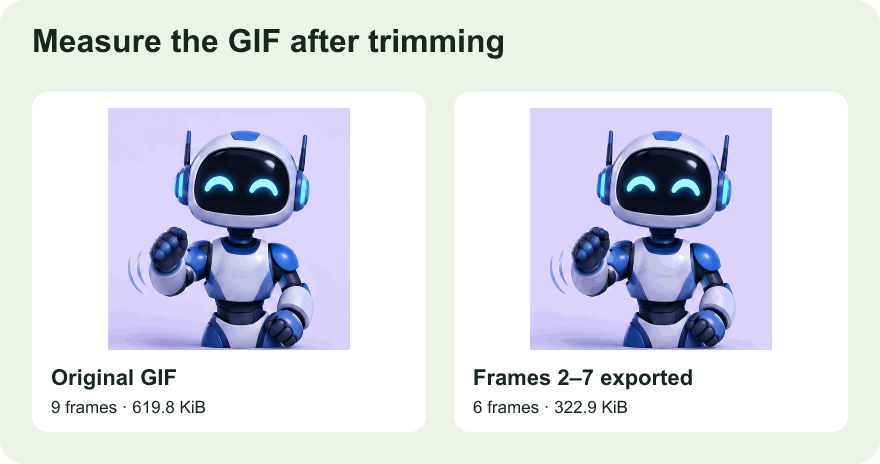
A trimmed GIF can be larger because a trim is usually a decode and re-encode. The editor builds the visible frames, retains the selected interval, and writes a new GIF. The original and the output may represent the same visible picture with different data. Removing half the frames therefore does not imply removing half the bytes. The effect is especially noticeable with screen recordings and simple animations that were already optimized for small updates.
Why the source may be unusually small
A GIF frame can contain a rectangle smaller than the canvas. Think of a screen recording in which a pointer moves across a menu. A new frame may only need to update the area around the pointer. The rest of the picture can carry over from a previous frame, depending on the GIF's disposal instructions. Some animations also use one shared color table instead of storing separate tables with many frames. An efficient source can therefore have many visible frames without repeating all the pixel data.
When you cut into the middle, the first output frame has to show the complete picture at that moment. The decoder has to reconstruct it from the original sequence. The encoder can represent the resulting pictures differently from the source. If the new file uses larger frame rectangles or repeats more data across frames, the cost per frame can go up enough to outweigh the frames you removed. The effect comes from the new encoding, not from adding hidden seconds to the clip.
Check the output before changing settings
Open the trimmed download and check that it starts and stops where you intended. Compare the dimensions, frame count, and playback length with the original. If the duration and frame count decreased and the dimensions stayed the same, a larger file is consistent with re-encoding. If the dimensions increased, check whether you also ran a resize or opened the wrong file. Keep both copies and label them clearly while you compare.
Watch for color changes too. GIF represents colors using palettes. A newly encoded file may choose different palette entries and group similar colors differently. A color change and a size change can happen together even when the motion and dimensions are identical. Inspect gradients, faces, and small text where the difference is easiest to notice. If the output has a severe visual problem, try a new export from the original rather than recompressing the damaged copy.
Choose which part of the file to reduce
If you can remove more unused time, return to GIF Trimmer and test a tighter range. Keep enough frames for the action to make sense. Removing a single idle hold can make the clip feel snappier, but an idle hold represented as a long delay on one frame may cost very few bytes. Remove extra pictures or visual material when your main goal is file size.
If the subject occupies only part of the frame, try GIF Cropper. A screen recording with empty space around a dialog can often use a smaller canvas while preserving the text size. Check the beginning and end and any frames where the subject moves closest to the crop boundary. Save the crop as a working copy and compare its actual bytes with the trim.
For a strict limit, open the working copy in GIF Compressor. Try a moderate scale reduction and preserve a larger palette for gradients. For simple artwork, compare a smaller palette before shrinking the dimensions again. Try changes from the same working copy, record the actual output size, and pick the smallest version that still reads clearly. A chart of your own exports is more useful than a fixed rule about how many KB each percentage removes.
Use the destination to decide when to stop
If the GIF is for a chat upload, compare the exported file with the specific upload cap. The 256 KB GIF compressor checks the exported file against the emoji size target, and the X guide explains mobile and web targets. If you already meet the limit and the animation looks good, a few extra bytes compared with the original may not matter. If the destination requires exact dimensions, protect those dimensions and change the duration or palette first.
When you control the destination, also test animated WebP. Its encoding can be a better fit for a detailed animation, but format support and visual quality still matter. Keep the GIF if your destination only takes GIF or if the WebP comparison gives no meaningful savings. For a website, compare the two downloads in the same layout and on the same background.
A practical before-and-after log contains the filename, dimensions, frame count, measured bytes, and a short note about the preview. For example, note that one export preserves a label but another makes it hard to read. This lets you choose based on the job the animation needs to do. A short file, a small file, and a clear file are three separate goals, and the best export is the one that meets the constraints for your particular use.