 GIF
How to Trim a GIF for a Smoother Loop
A smooth GIF loop starts and ends with frames that make sense when played next to each other. Choose the repeat point by looking at motion, camera position, and timing. A loop can have a visible cut and still feel intentional, but a stray frame or a long pause at the join can make the same animation feel broken. Open the original in GIF Trimmer and watch at least two repeats before selecting a range.
Find a useful point in the motion
For a repeating movement such as a wave, look for two moments when the hand has a similar position and direction. A hand traveling up and a hand traveling down can pass through the same spot. Joining those two frames can reverse the motion suddenly. Compare the neighboring frames to see where the hand is headed. On a moving camera shot, compare the background lines too. A character can line up while the camera jumps across the frame.
For a short reaction that naturally ends in a different pose, look for a transition that feels deliberate. A blink, a fast gesture, or a moment when the face is partly covered may hide a small discontinuity. If the action needs a reset, leave enough time to read the reaction first. Avoid picking a start frame so late that the viewer misses what prompted the response.
Use seconds for the first pass and frames for the join
In seconds mode, select a rough interval around the action. Play it and move the endpoints until the clip feels close. Then switch to frames and note the first and last retained frames. Both endpoints are included. Time selection works at frame boundaries, and a frame with a long delay can occupy a large interval on the timeline. Frame mode helps you choose a specific picture without guessing from a rounded time display.
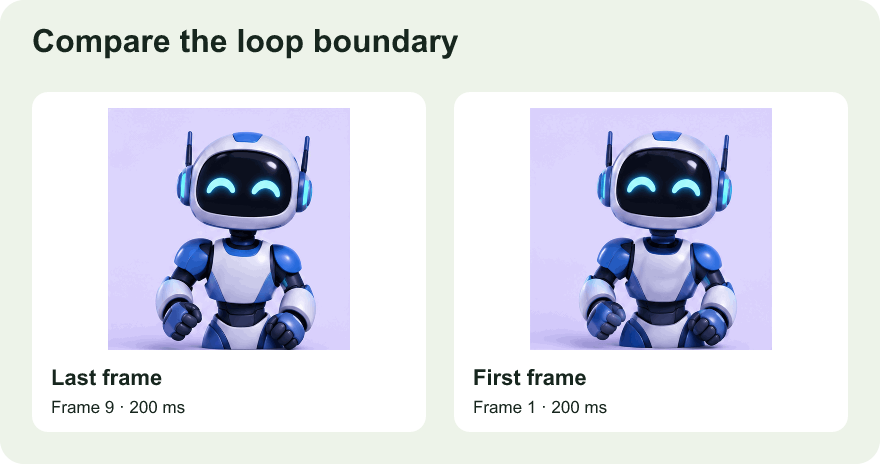
Step backward from the ending and forward from the beginning. Compare the last frame with the first, then compare the second-to-last with the second. If the source includes the exact same pose at both ends, try ending one frame earlier. Two copies of the same pose played in succession can create a brief hold at the join. If the ending frame is part of a natural rest, keep it and compare how both versions feel. The frame delays decide whether a repeated pose is noticeable.
Diagnose a jump and a pause separately
A jump is usually a visible change in position, shape, framing, or light. If a hand moves much farther at the join than it does between nearby frames, move the start or end one frame at a time. An abrupt change in brightness can be just as distracting as a large movement. Check a repeated clip against a neutral background so you can focus on what changes at the boundary.
A pause is a timing issue. GIFs can assign different delays to different frames, so a clip can stall even though the two endpoint images match. Watch for a hold right before the restart, then try omitting the frame that carries it. The trimmer preserves the selected frame delays. Use the GIF speed changer if you want to speed up or slow down the entire loop, but a faster clip can still have the same relative pause at its join.
Export and watch the saved file
Export a candidate and open the actual download. Watch several repeats at the size people will see it. A jump that is obvious in a large preview may be fine as a small emoji, while a pause remains visible anywhere. GIF Trimmer repeats the editor preview for inspection and keeps the source loop setting in the saved file. If the original plays once, check that behavior separately before posting the result where a looping GIF is expected.
If you are deciding between two endpoints, give the files distinct names and compare them side by side. Record the first frame, last frame, and what you see at the join. For instance, one cut may preserve a full wave but leave a long hold, while another shows the same reaction with a faster restart. Keep the source so a different destination can get its own cut later.
Know when one continuous clip is enough
Trimming works when the source already contains a passage with compatible endpoints or a cut that feels acceptable. A shot with a camera pan in only one direction may never return to its starting composition. A crossfade, a reversed return, or a repositioning effect needs editing beyond a single continuous selection. For an emoji, choosing a different passage is often easier than disguising a large jump. If the clip also has empty margins, crop the animation and compare the loop again. The closer view can make a small motion more obvious, so inspect the final export before sharing it.
When you compare two loop candidates, let each play for the same number of repeats before deciding. A cut can look fine once and become distracting when the viewer sees it several times in a row.